

Help & FAQ
Everything below is about using DraftShelf itself. If you can't find your answer, email us directly and we'll get back to you.
Getting started
From a real, signed-in walkthrough - everything from your first sign-in to tailoring one resume for two different roles.
-
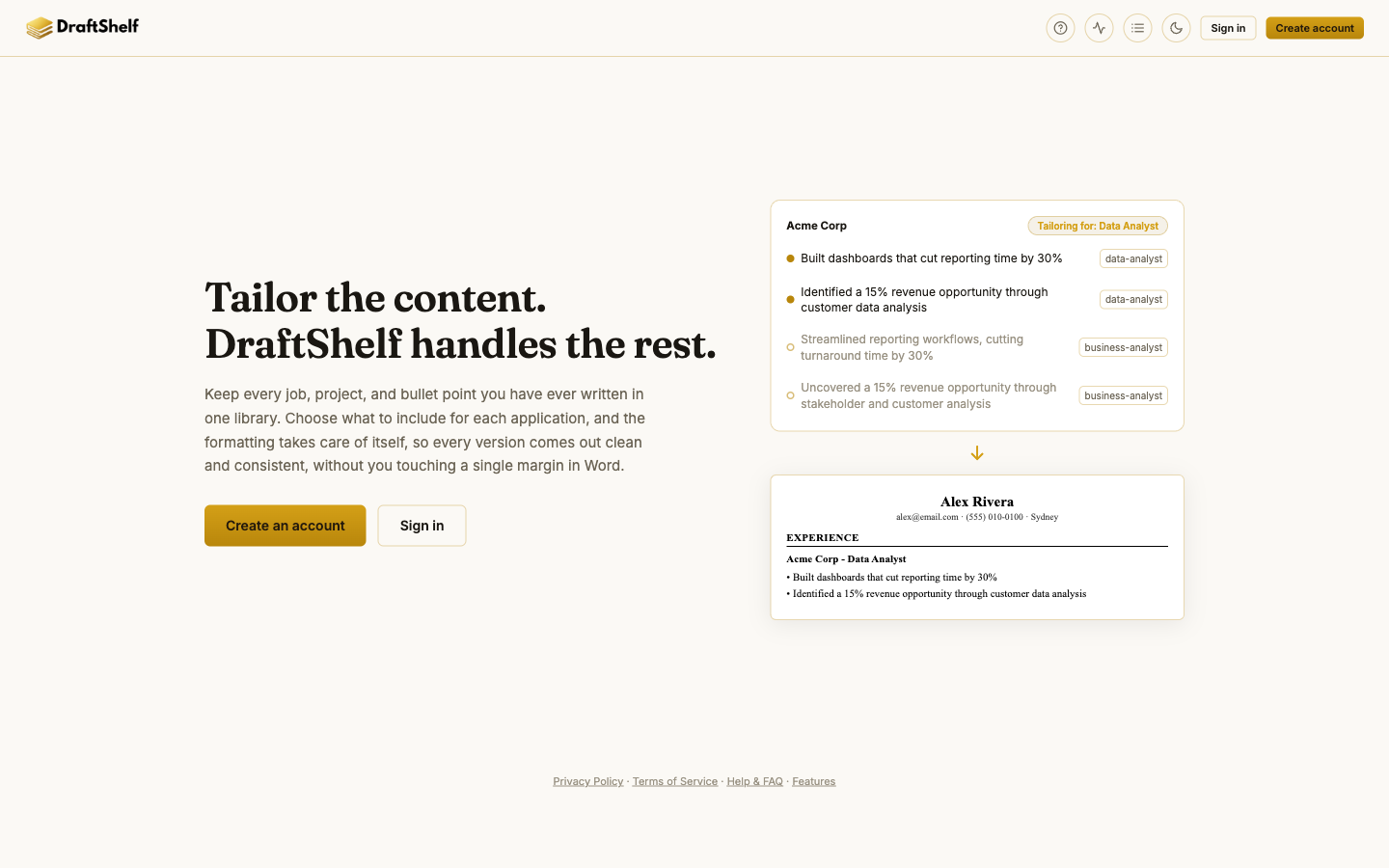
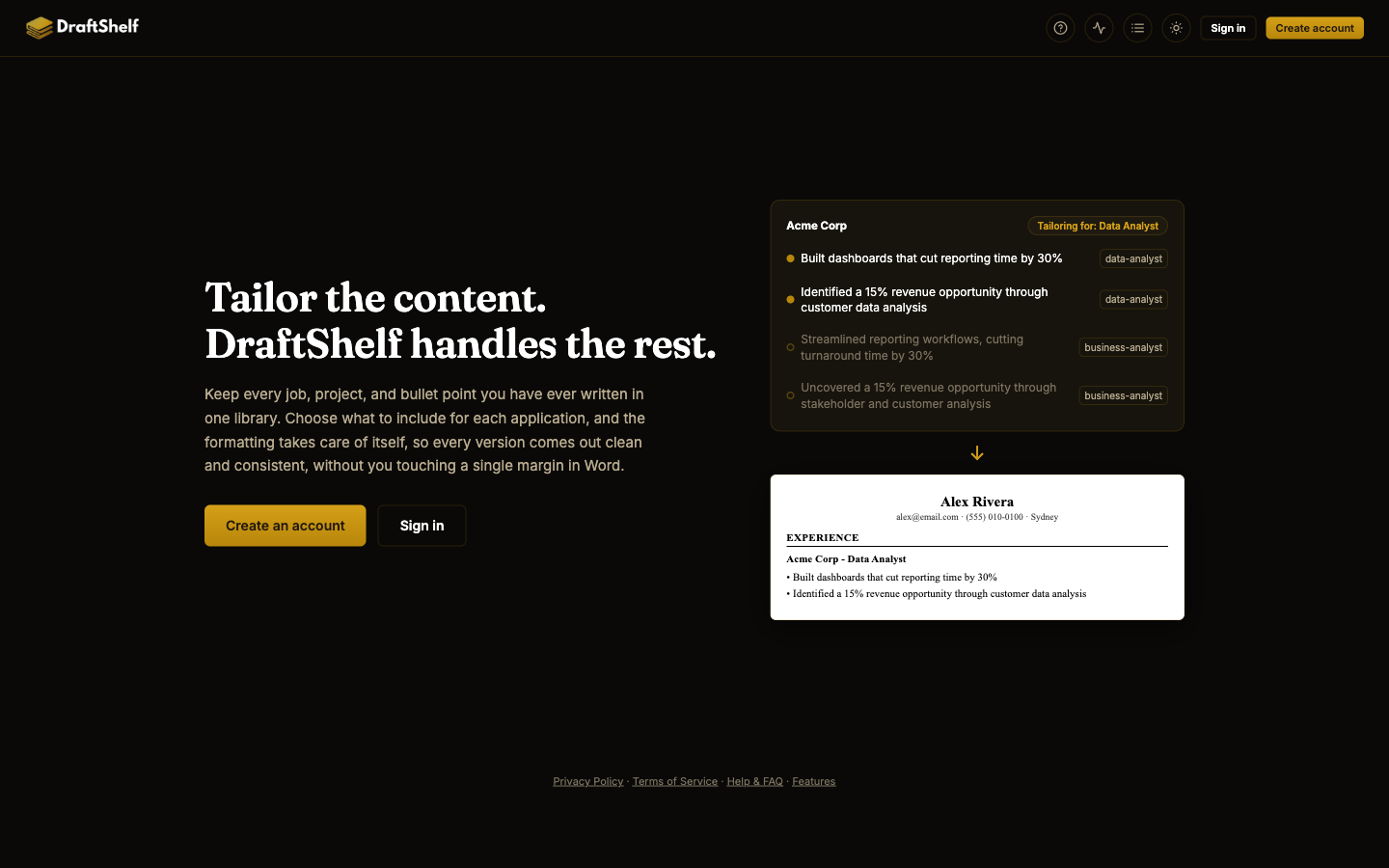
Create an account
Sign up with an email and password, or with Google or GitHub. Every account is fully free, and everything you enter is private to you.
-
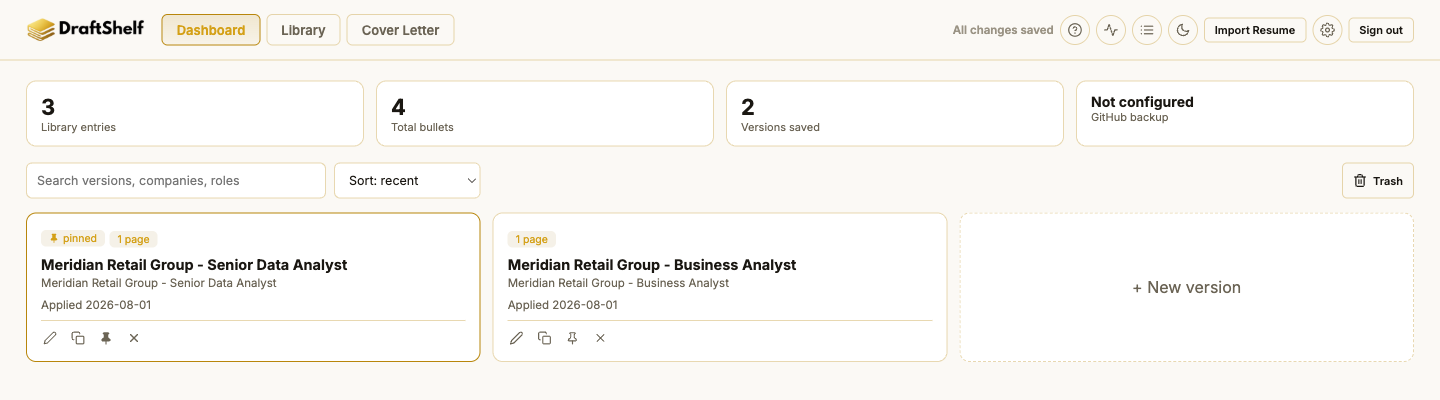
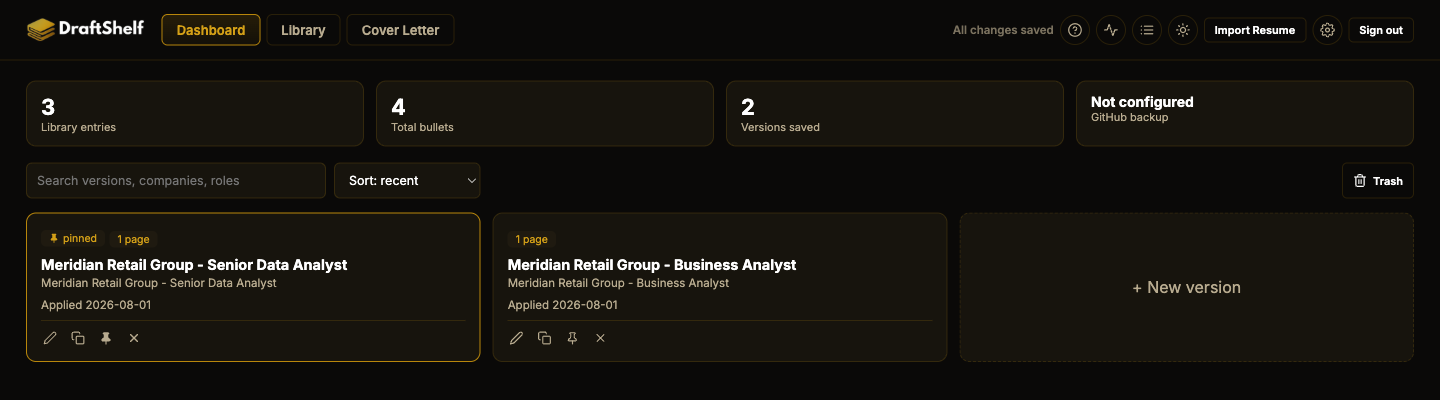
Land on your Dashboard
Every tailored resume you build lives here as its own card. A brand-new account starts empty - click "+ New version" whenever you're ready for your first one.
-
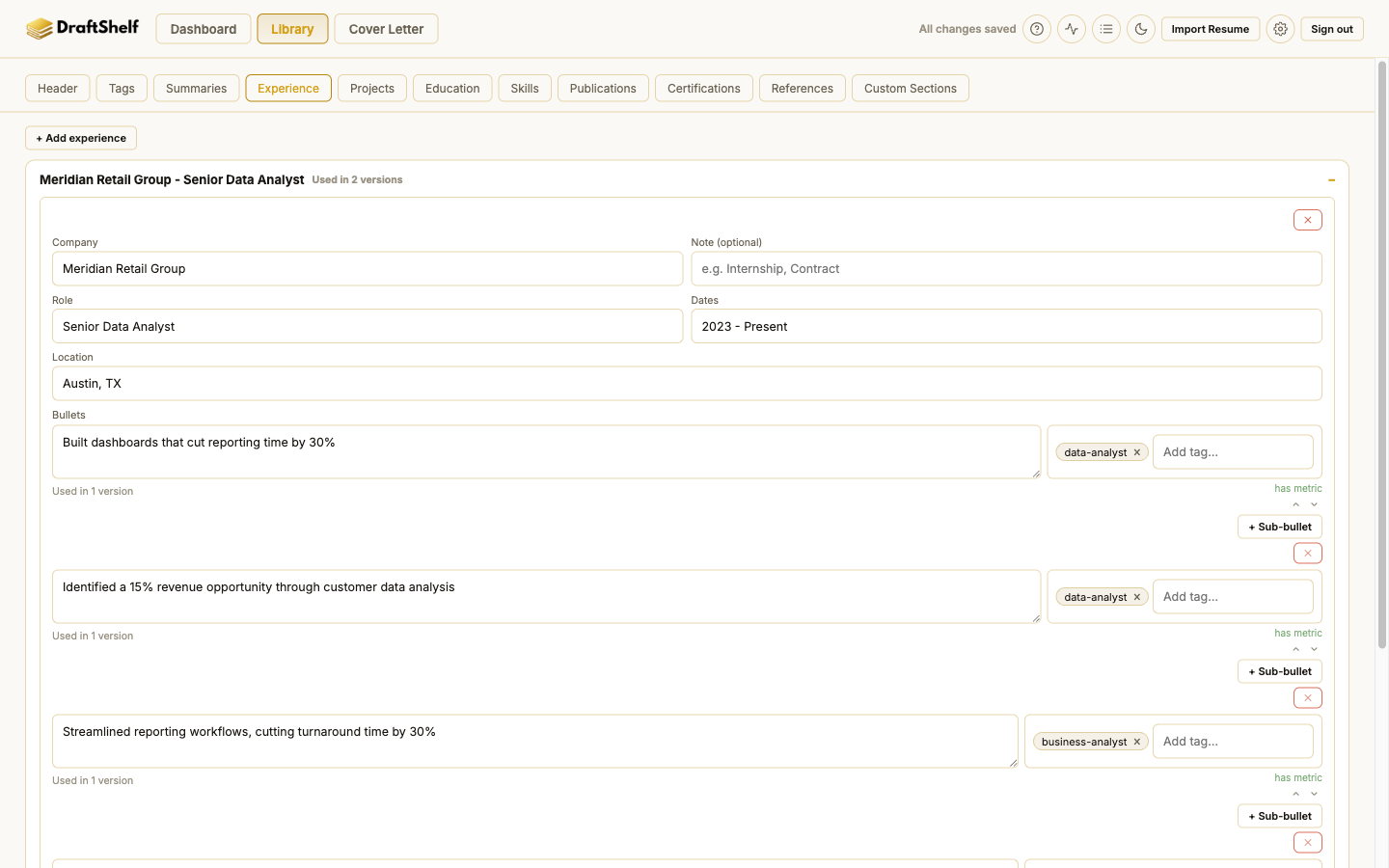
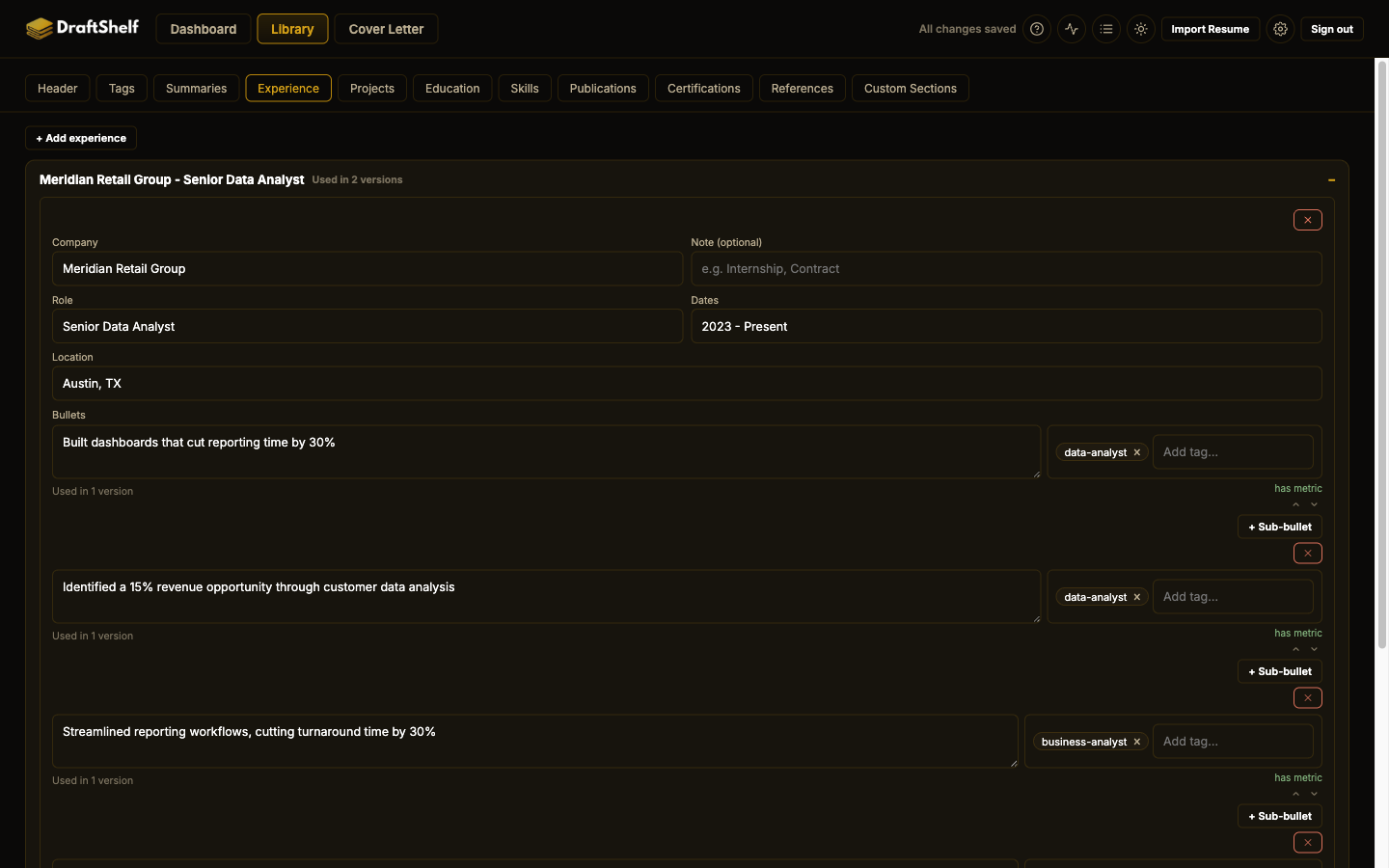
Fill in your Library
The Library tab is where every job, project, school, and skill you've ever had lives - add it once here. Each entry can hold several bullet points, and you'll pick which ones to use per resume later.
-
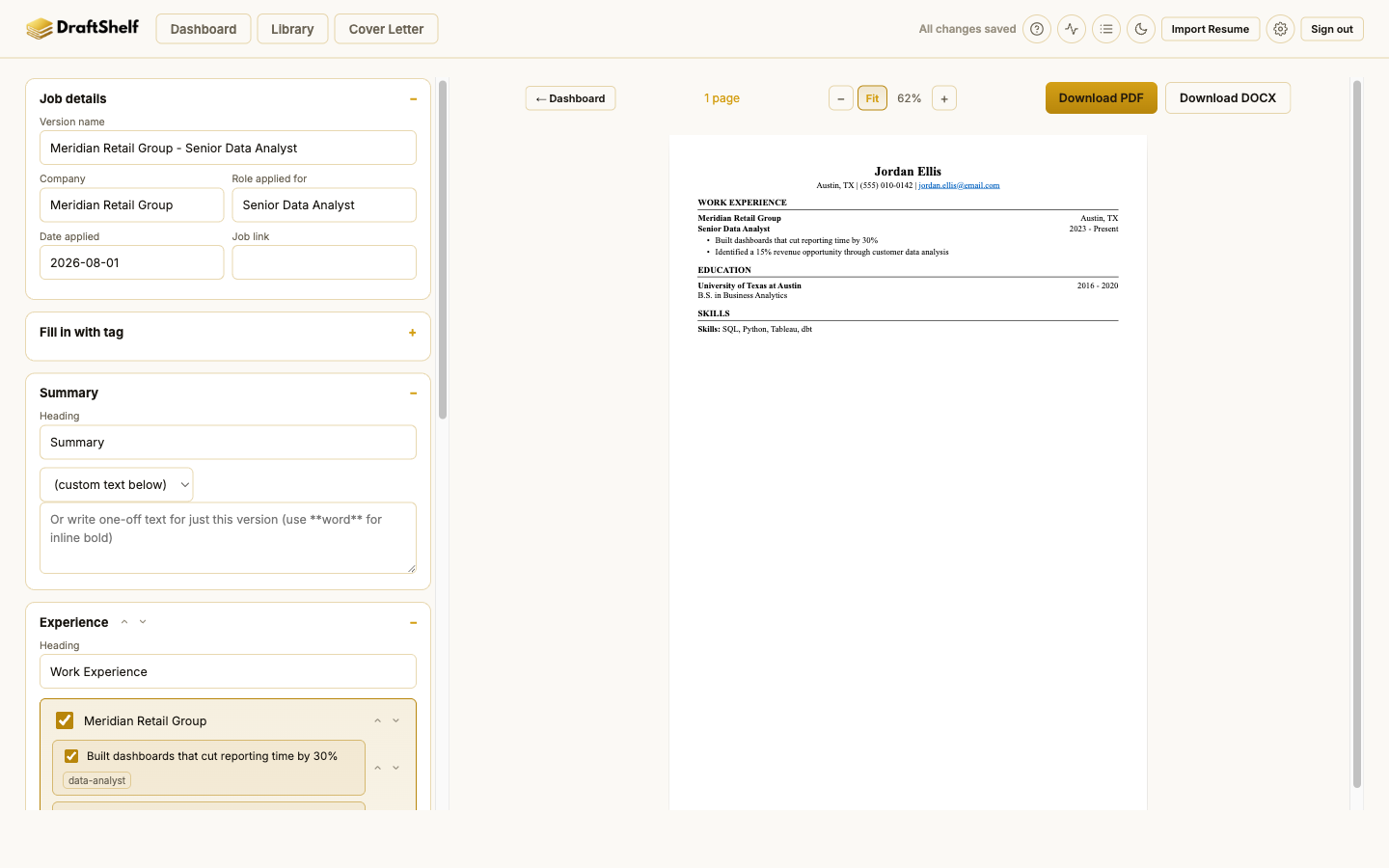
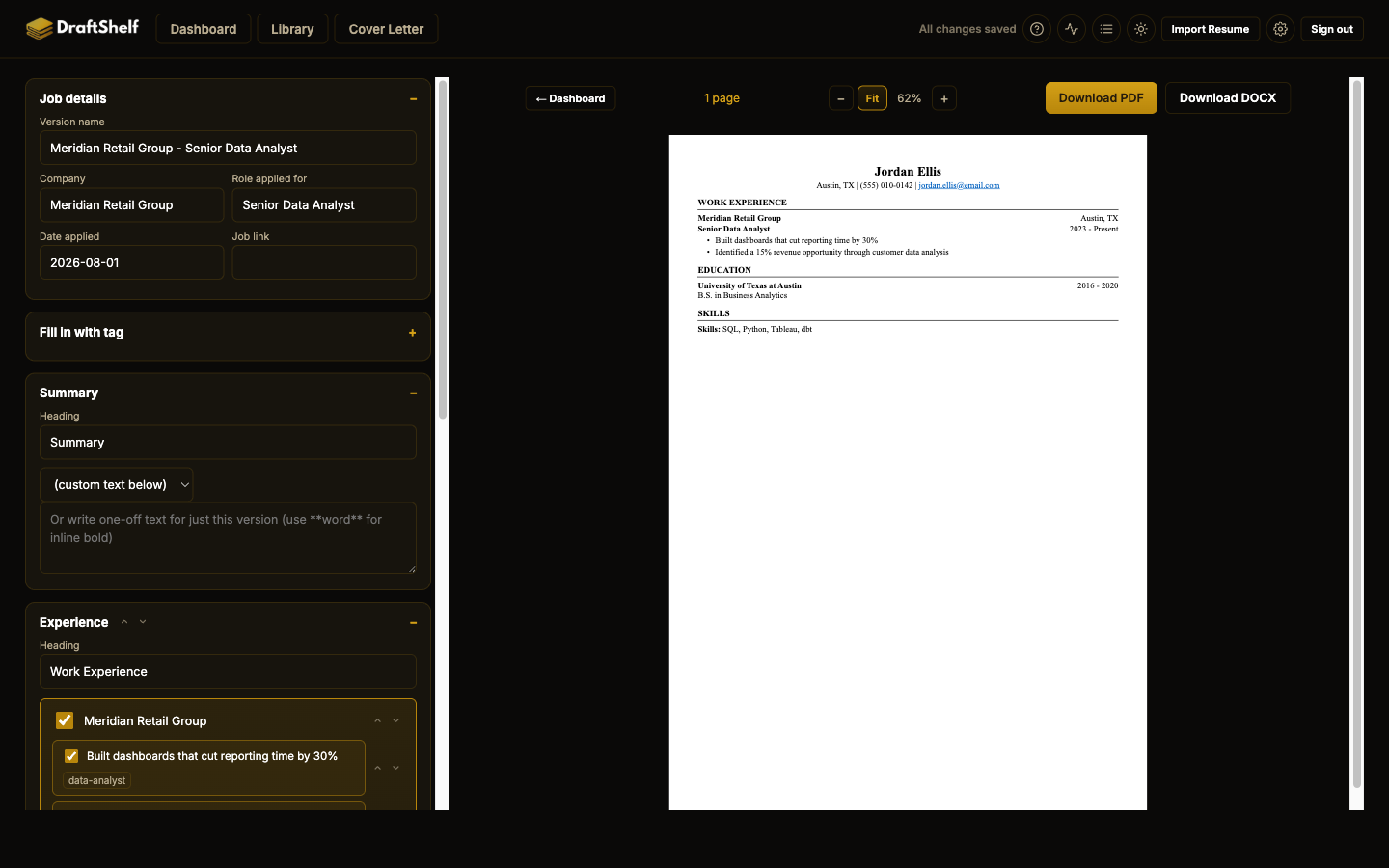
Build a version and export it
Open a version, check off which Library entries and bullets belong on this particular resume, and watch the preview on the right update live. When it looks right, click Download PDF or Download DOCX in the top-right corner.
-
Tailor for a different role in one click
Tag bullets with a role name (e.g.
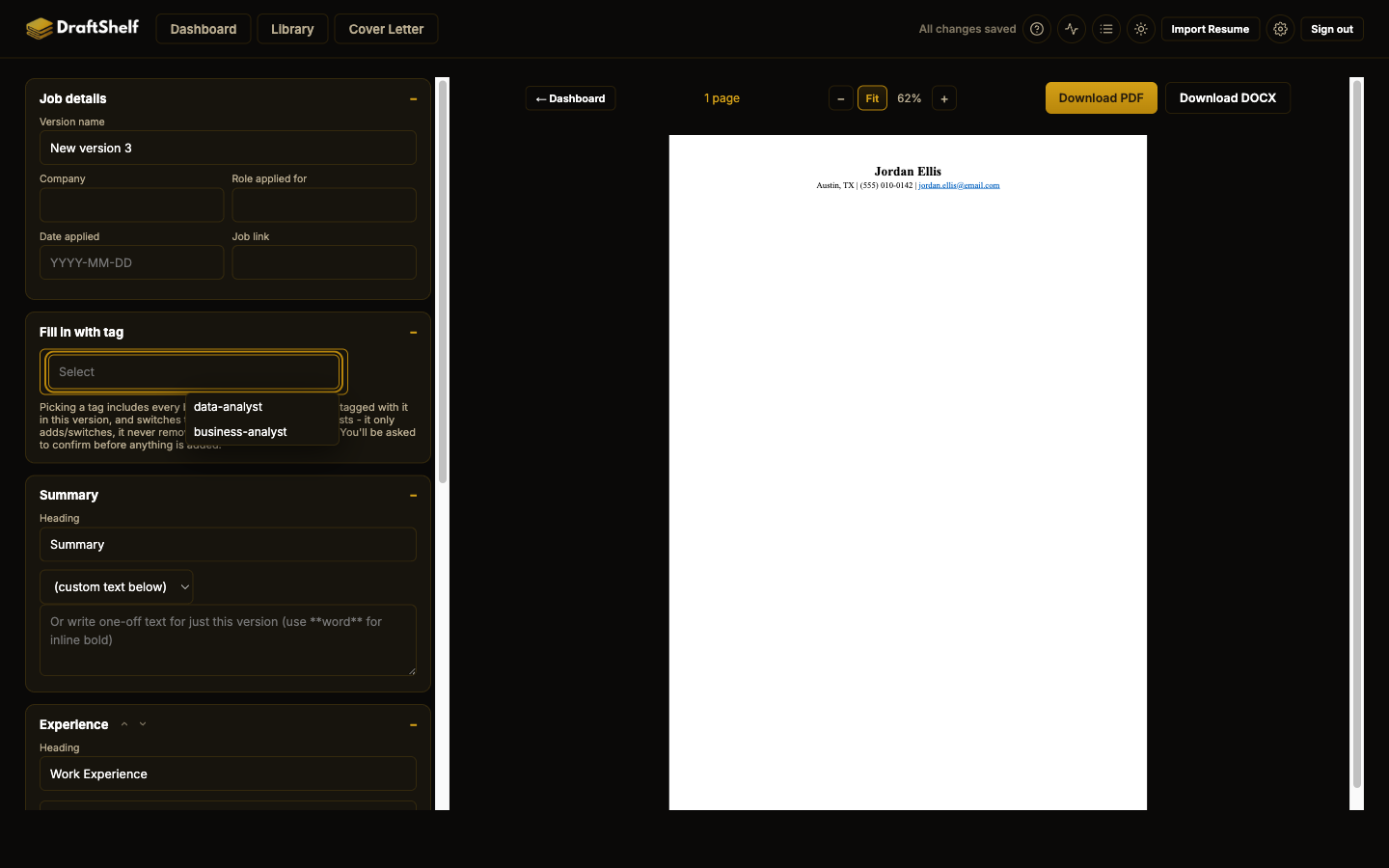
data-analyst,business-analyst) in the Library, then use Fill in with tag at the top of any version to pull in everything tagged for that role at once - it only adds or switches content, it never removes anything you've already included, and it asks before making any change.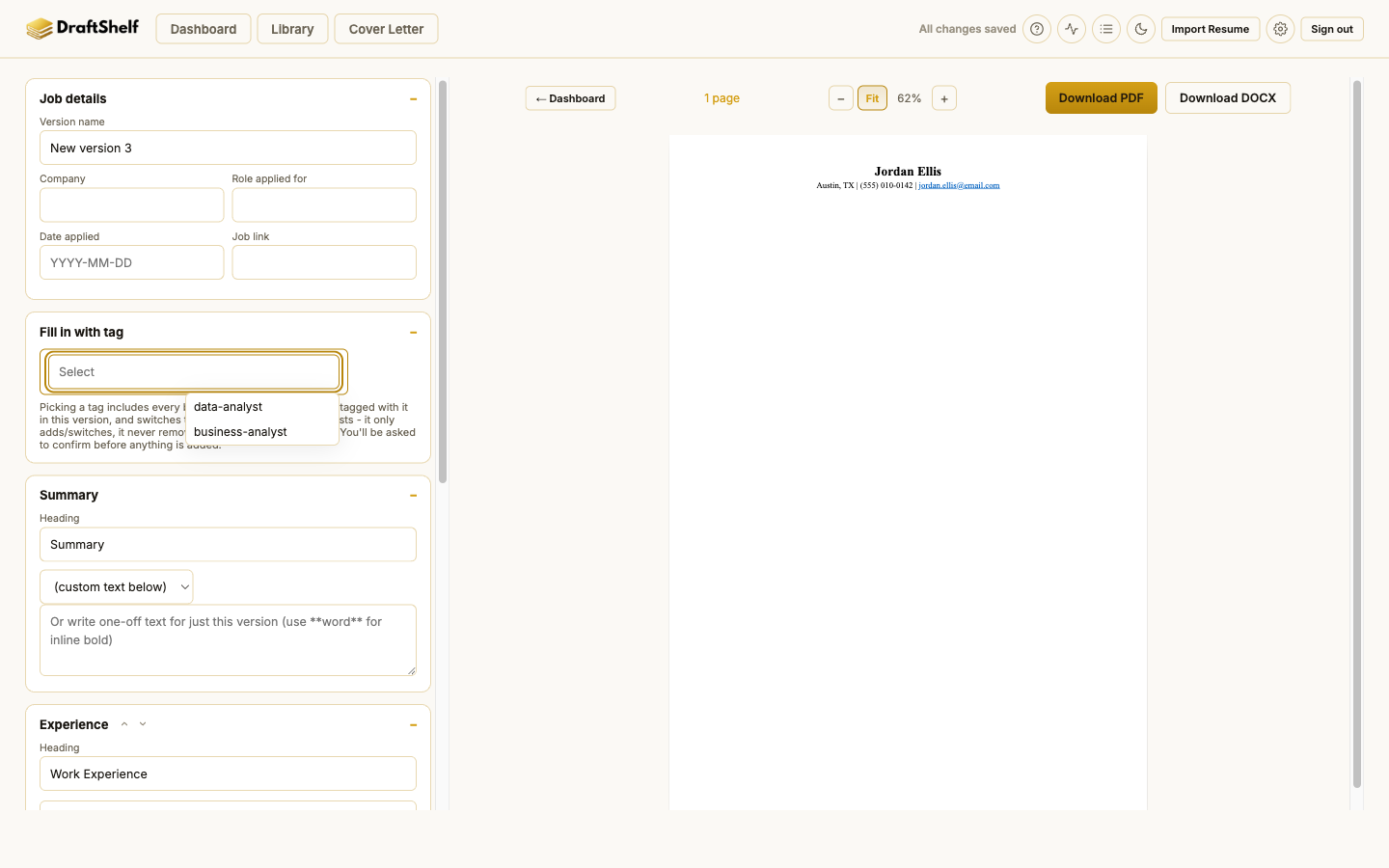
-
Edit an entry without leaving the version
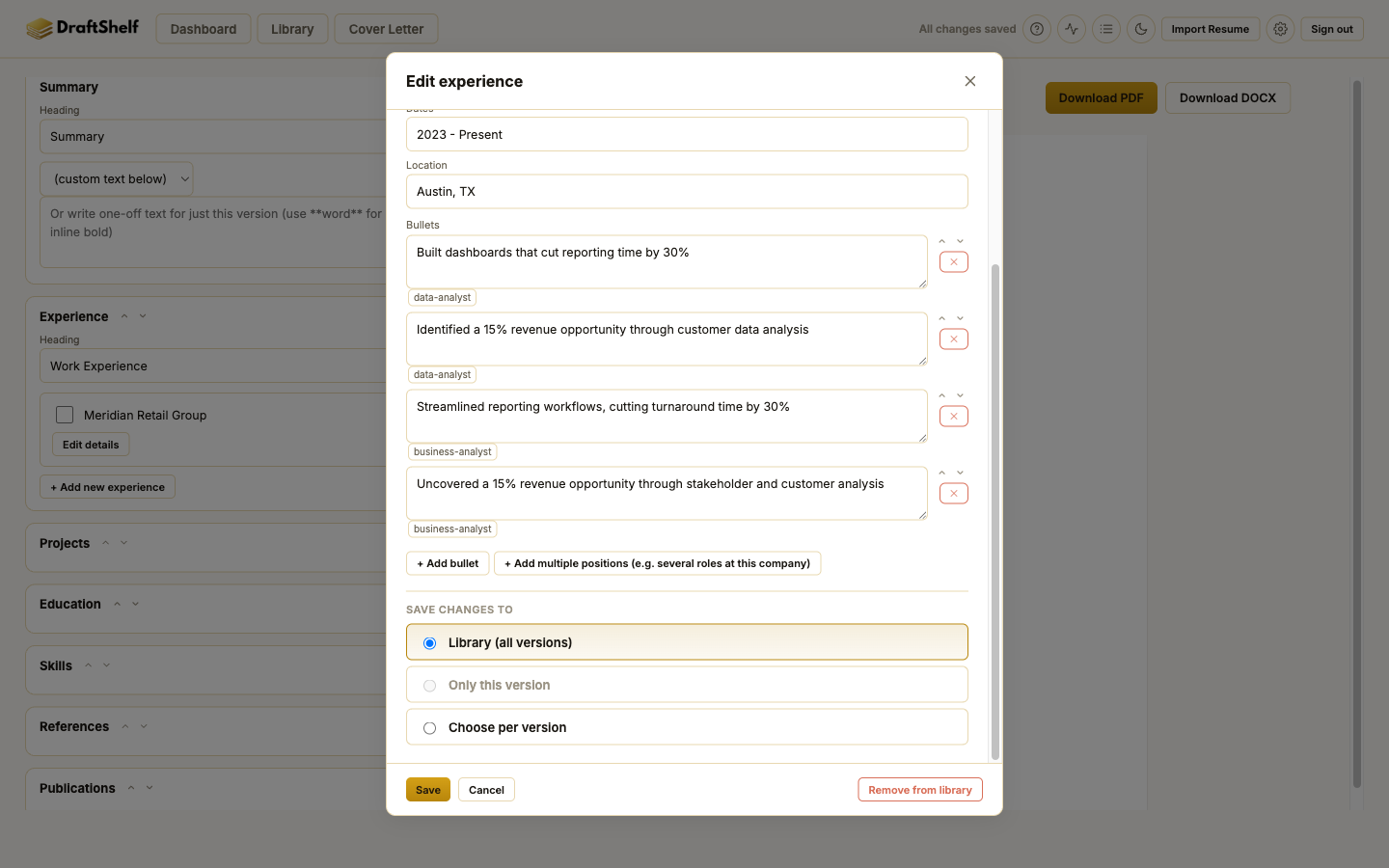
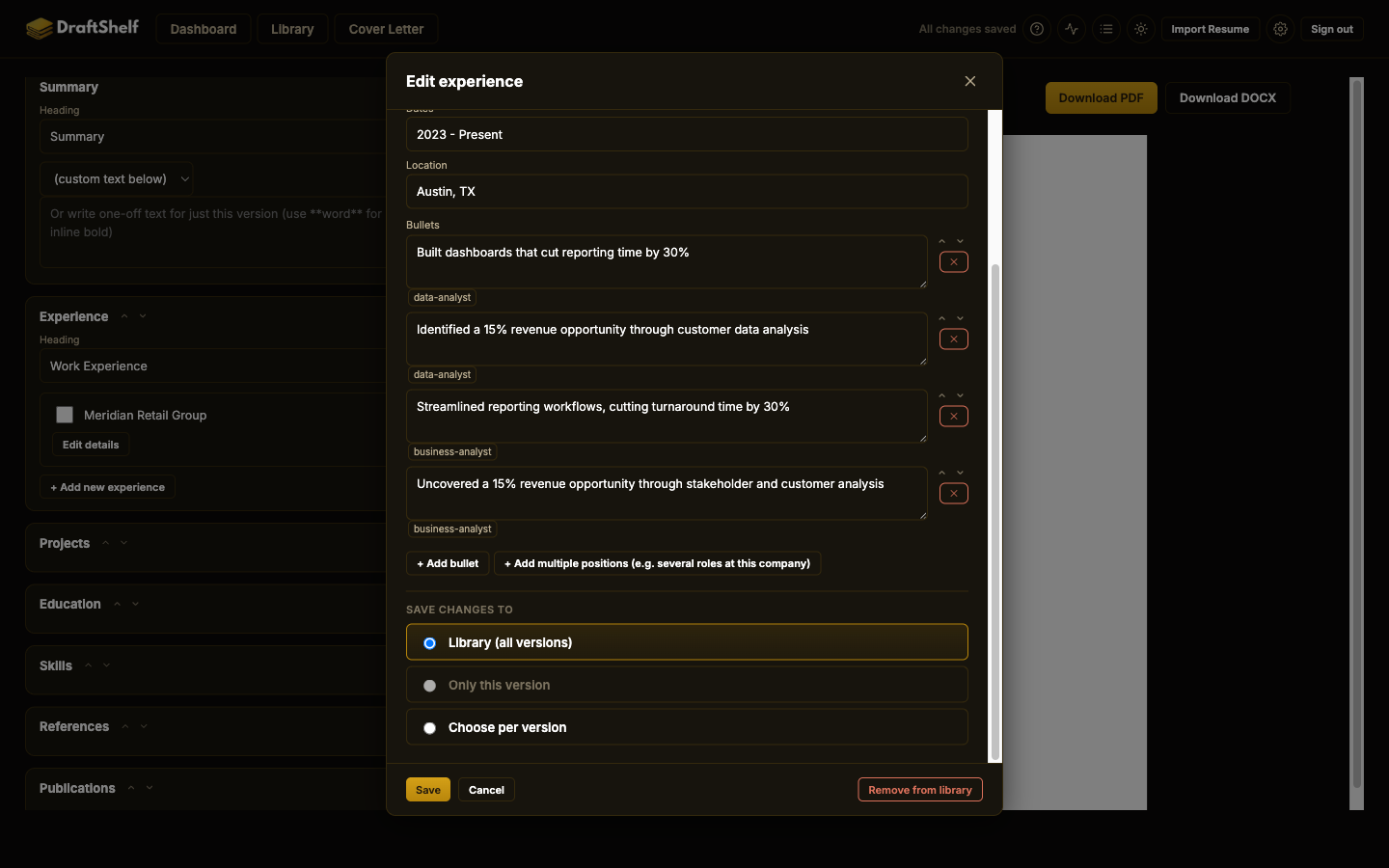
Click Edit details on any checklist item to open, edit, and add bullets to that Library entry right from the editor. The Save changes to choice at the bottom decides how far the edit reaches: update the shared Library everywhere it's used, keep it local to just this one version, or pick per version.
Connect an AI Assistant
Let Claude Code, Codex, Claude Desktop, claude.ai, or ChatGPT read and edit your Library and Versions directly, right from the conversation.
Local: Claude Code, Codex
A coding tool running on your own machine.
1. Add it to your AI tool
claude mcp add draftshelf -s user -- npx -y draftshelf-mcpcodex mcp add draftshelf -- npx -y draftshelf-mcpClaude Desktop also supports Connectors directly (see that column) - use this config file instead for any tool with no Connectors option of its own:
{
  "mcpServers": {
    "draftshelf": {
      "command": "npx",
      "args": ["-y", "draftshelf-mcp"]
    }
  }
}
2. Restart your AI tool and try it
The first time it actually launches the server, your browser opens on its own to a real DraftShelf sign-in + consent screen - sign in there once, then ask it something like "add a bullet to my most recent experience entry" and reload DraftShelf in your own browser to confirm the change is really there. Every launch after that is instant, no browser involved - if your tool gives up before you finish signing in, finish anyway and just ask it to try again.
The full setup guide lives on the draftshelf-mcp npm package page.
Connectors: claude.ai, Claude Desktop, ChatGPT
Add DraftShelf as a connector directly in the chat interface - nothing runs on your own machine.
Go to Settings → Connectors, click the + button, then Add custom connector (same steps on both). Paste in:
https://mcp.draftshelf.appClick Add, sign in (or create an account), and click Allow when asked to connect. Free, Pro, and Max accounts can add it directly (Free is limited to one custom connector); on a Team/Enterprise account, an organization owner adds it once under Organization Settings → Connectors, and members then enable it individually.
Open Settings → Security and login and turn on Developer mode (this feature is currently only available that way). Then go to Plugins, click the + button, and paste in:
https://mcp.draftshelf.appSign in and approve the connection.
Try it
Ask it something like "add a bullet to my most recent experience entry" and reload DraftShelf in your browser to confirm the change is really there. Every write it makes goes through the same validated, revision-checked path a browser edit does, and if GitHub backup is connected, it fires from there too - reopening the same chat later needs no re-sign-in, and Claude Desktop's own Connectors screen works exactly the same way as claude.ai's shown above.
Disconnect any time from Settings → Connected Apps in DraftShelf.
FAQ
Short answers to the questions we hear most.
Is DraftShelf free?
Do I need an account to use DraftShelf?
What's the difference between the Library and a Version?
If I fix a typo in a bullet, does it update on every resume that uses it?
Should I download the PDF or the DOCX?
Will my resume pass through an ATS (applicant tracking system)?
What is GitHub Backup, and is it required?
Can I import a resume I already have?
Who can see my resume data?
Can I use DraftShelf through an AI assistant instead of the website?
Troubleshooting
Common snags and how to clear them.
My PDF download is taking a long time, or seems stuck
My resume shows an extra page in the PDF that didn't look necessary on screen
I never received (or can't use) a confirmation or password-reset email
GitHub Backup shows "failed" or an error
I got a message about a "sync conflict"
I navigated away from a version and can't find my way back
My AI assistant says it can't find any DraftShelf tools
My AI assistant opened a browser tab for sign-in and I closed it, or it timed out
How do I disconnect an AI assistant from my account?
Glossary
Terms used throughout the app.
- Library
- Every job, project, school, skill, summary, and reference you've ever entered, kept in one account-wide place. Edited once, used everywhere.
- Version
- One tailored resume: a specific selection of Library content, in a specific order, plus its own job details and style. You can have as many as you like.
- Skill Set
- A saved, reusable bundle of skill categories - pick one set instead of re-checking the same boxes on every new version.
- Tag
- A short label (e.g. "backend", "data") you can put on bullets or skill categories, then use to quickly pull in everything written for that kind of role.
- Standalone version
- A version imported from a file that keeps its own private copy of its content instead of referencing your shared Library - useful for a one-off resume that shouldn't affect your account data.
- References mode
- Whether a version prints your actual reference list in full, or just the line "References available upon request."
- Cover Letter
- A separate one-page tool for drafting a matching cover letter - not tied to the Library/Version system, since a cover letter isn't reusable content the way a resume bullet is.
- GitHub Backup
- An optional, one-way (push-only) automatic backup of your Library and versions to a GitHub repository you choose. DraftShelf never reads anything back from GitHub.
- MCP (Model Context Protocol)
- An open standard that lets an AI assistant call an app's own tools directly in conversation, instead of you clicking through its UI. It's how Claude Code, Codex, Claude Desktop, claude.ai, and ChatGPT can read and write your DraftShelf Library and versions.
- Connector
- The name claude.ai and ChatGPT use for an MCP connection you add in their own settings, no local install needed - as opposed to a local MCP server, which runs on your own machine for tools like Claude Code or Codex.
- Connected Apps
- The Settings panel listing every AI assistant currently signed in to your account, with a Revoke button to disconnect any of them.
Contact
DraftShelf is an independently run tool, not a company with a support team - email is genuinely the fastest way to reach a real person.
For questions, bug reports, or feedback on this help page itself:
ariadaikalam1234@gmail.com
Status
If something feels broken (PDF export failing, changes not saving), check whether it's a known server issue: Status page